As the premier Canon Photocopier Service Center in Bangladesh, we at Ideal Technology take pride in delivering the highest standard of professional services to our clients. When it comes to your Canon photocopier maintenance and repair needs, rest assured that our team of skilled technicians is dedicated to providing efficient and reliable solutions. At Ideal Technology, we understand the importance of keeping your office equipment operating at its best, which is why we offer top-notch services tailored to meet your specific requirements. With a commitment to excellence and customer satisfaction, we strive to ensure that your Canon photocopier operates seamlessly, allowing you to focus on your core business activities without any disruptions. Trust Ideal Technology for all your Canon photocopier service needs in Bangladesh, and experience the difference of working with a team that prioritizes professionalism and expertise.
Canon Color Copier Service at Get Reliable Repair Services
As technology continues to advance, businesses in Bangladesh are increasingly relying on high-quality color copiers to meet their document management needs. If you own a Canon color copier and are in need of repair or maintenance services, it’s crucial to find a reputable service center that can provide reliable and efficient solutions.
About Ideal Technology BD
One such trusted service center in Bangladesh is Ideal Technology BD. With years of experience in the industry, Ideal Technology BD has established itself as a leading provider of Canon color copier repair services in the region. Their team of skilled technicians is trained to handle a wide range of issues, from minor repairs to complex technical problems.
Expertise in Canon Color Copier Repair at Bangladesh
Ideal Technology BD specializes in servicing Canon color copiers, ensuring that your equipment is always in top working condition. Whether you’re experiencing print quality issues, paper jams, or error messages, their team has the expertise to diagnose and repair the problem efficiently.
Authority in the Industry
As a trusted service center, Ideal Technology BD has built a strong reputation for their professionalism and commitment to customer satisfaction. They use genuine Canon parts and follow manufacturer guidelines to ensure that your color copier is repaired to the highest standard.
Establishing Trust with Customers
When it comes to choosing a service center for your Canon color copier, trust is key. Ideal Technology BD prides itself on transparent pricing, timely service, and clear communication with customers. You can trust their team to provide honest recommendations and reliable solutions for all your repair needs.
Why Choose Ideal Technology BD?
Reliable and efficient repair services for Canon color copiers
Skilled technicians with expertise in diagnosing and fixing a variety of issues
Genuine Canon parts used for repairs to ensure quality and longevity
Transparent pricing and clear communication throughout the repair process
Conclusion
When it comes to maintaining your Canon color copier, don’t settle for anything less than the best. Choose Ideal Technology BD for all your repair and maintenance needs, and experience the difference that expertise, authority, and trust can make. Contact Ideal Technology BD today for reliable and efficient service that you can count on.
This section provides you with the names and functions of all of the parts on the outside and inside of the main unit and control panel. The illustrations in this section show some optional equipment attached to the machine. For more information on the optional equipment, see Optional Equipment.
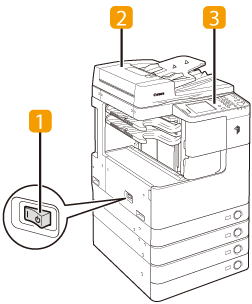
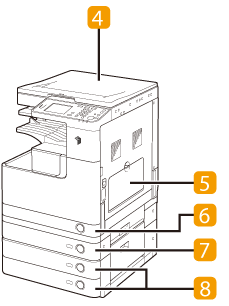
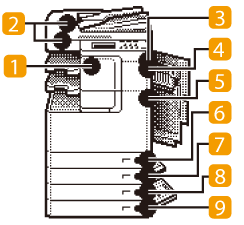
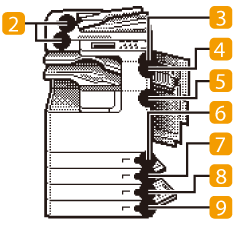
External View
The imageRUNNER 2530 with the optional Inner Finisher-B1, Inner Finisher Additional Tray-B1, and CST. Feeding Unit-AE1 attached.
The imageRUNNER 2520 with the optional platen cover, Inner 2 Way Tray-G1, Cassette Module-W1, and CST. Feeding Unit-AE1 attached.
Main Power Switch
Press to the “I” side to turn ON the machine. (See Chapter 2, “Before You Start Using the Machine,” in the User’s Guide.)
Feeder (Optional)
Originals placed in the feeder are automatically fed sheet by sheet to the scanning area. The feeder also automatically turns over two-sided originals to make one- or two-sided copies.
Control Panel
The control panel includes the keys, touch panel display, and indicators required for operating the machine. (Control Panel)
Platen Cover Type P (Optional)
The platen cover secures the originals placed on the platen glass.
Stack Bypass
Use the stack bypass to feed paper manually, and for loading nonstandard paper stock, such as envelopes. (Loading Paper in the Stack Bypass)
Paper Drawer 1
Paper Drawer 1 holds up to 550 sheets (250 sheets for the imageRUNNER 2520) of paper (21 lb bond [80 g/m2]).
Paper Drawer 2 (Optional for the imageRUNNER 2520)
Paper Drawer 2 holds up to 550 sheets of paper (21 lb bond [80 g/m2]).
Paper Drawers 3 and 4 (Optional)
The CST. Feeding Unit-AE1 provides two additional sources of paper for printing jobs. Each paper drawer holds up to 550 sheets of paper (21 lb bond [80 g/m2]).
Internal View
The imageRUNNER 2530 with the optional Inner Finisher-B1, Inner Finisher Additional Tray-B1, and CST. Feeding Unit-AE1 attached.
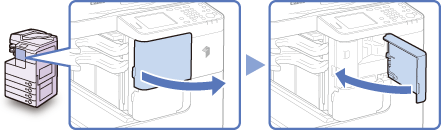
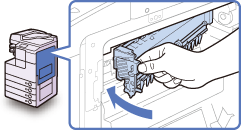
Front Cover
Open this cover to replace the waste toner container.
Press to use functions such as Remote Scan, Media Print, Secure Printing, etc. (See the help on the Color Network ScanGear and Using the Machine as a Printer.)
Control panel power switch (Sub power supply)
Press to turn the control panel ON or OFF. When the control panel is turned OFF, the machine is in the Sleep mode. (See Chapter 2, “Before You Start Using the Machine,” in the User’s Guide.)
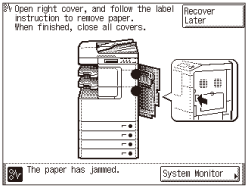
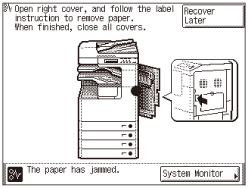
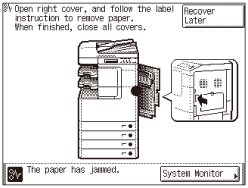
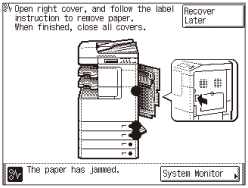
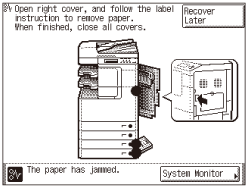
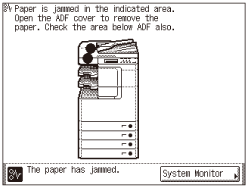
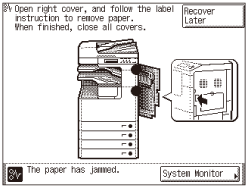
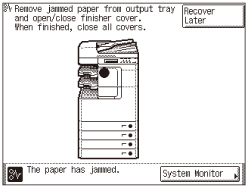
If paper is jammed inside the machine, a screen such as shown below appears on the touch panel display. Use this screen to immediately locate and clear the paper jam.
There are some areas inside the machine which are subject to high-voltages. When removing jammed paper or when inspecting the inside of the machine, do not allow necklaces, bracelets, or other metal objects to touch the inside of the machine, as this may result in burns or electrical shock.
When removing jammed originals or paper, take care not to cut your hands on the edges of the original or paper.When removing paper which has become jammed inside the machine, take care not to cut your hands or injure yourself on the parts on the inside of the machine. If you cannot remove the paper, please contact your local authorized Canon dealer.When removing paper which has become jammed inside the machine, take care not to allow the toner on the jammed paper to come into contact with your hands or clothing, as this will dirty your hands or clothing. If they become dirty, wash immediately with cold water. Washing with warm water may set the toner and make it impossible to remove the toner stains.When removing paper which has become jammed inside the machine, remove the jammed paper gently to prevent the toner on the paper from scattering and getting into your eyes or mouth. If the toner gets into your eyes or mouth, wash immediately with cold water and immediately consult a physician.The fixing unit and its surroundings inside the machine may become hot during use. When removing jammed paper or when inspecting the inside of the machine, do not touch the fixing unit and its surroundings, as this may result in burns or electrical shock.After clearing all paper jams, remove your hands from the machine immediately. Even if the machine is not in operation, your hands, hair, or clothing may get caught in the feed rollers, which could result in personal injury or damage if the machine suddenly starts printing.
IMPORTANT
After you have cleared all the paper jams, make sure to return all the levers and covers to their original positions. Once you have removed all of the jammed paper, printing resumes.
NOTE
When all the paper jams are cleared, the machine automatically recalculates the number of copies or prints to make. You do not need to re-enter the number of copies or prints, even if you are printing multiple sets.
Locating Paper Jams
When paper is jammed inside the machine, the machine detects the jammed paper and displays where you can find it. Approximate locations of the jammed paper are indicated with dots on the machine’s image. Check for all paper jam locations on the touch panel display and see the appropriate pages below for instructions on how to remove jammed paper.
IMPORTANT
Do not turn the machine OFF before clearing all paper jams. If the machine is turned OFF with the jammed paper left inside, the machine may not detect the jammed paper after the machine is turned back ON.
NOTE
Jammed paper may not actually be found in the indicated areas. In this case, check other locations and then close all the open covers.
The machine with the optional Inner Finisher-B1 and Inner Finisher Additional Tray-B1 attached:
The machine with the optional Inner 2 Way Tray-G1 attached:
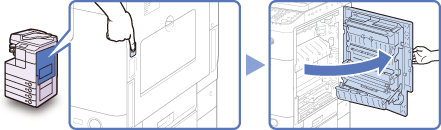
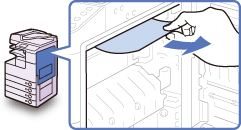
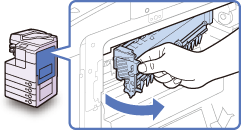
If paper is jammed in the fixing unit, remove the jammed paper as described below.
The fixing unit and its surroundings are subject to high temperatures. When removing jammed paper, do not touch anything in this area except the jammed paper or the upper cover.
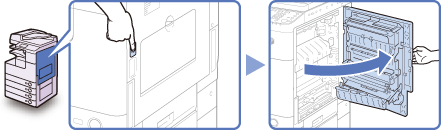
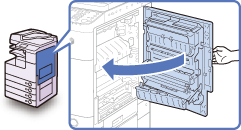
1 Press the button on the right cover of the main unit, and open the right cover.
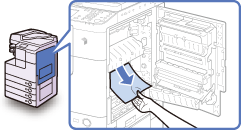
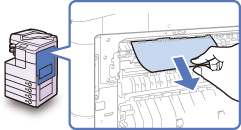
2 Remove any jammed paper protruding from the lower part of the fixing unit.
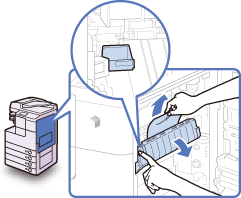
3 Pull down the upper cover of the fixing unit by the tab, and remove any jammed paper.
The fixing unit and its surroundings are subject to high temperatures. When removing jammed paper, do not touch anything in this area except the jammed paper or the upper cover.
4 Place your hand where the hand symbol () is located on the right cover of the main unit, and then gently close the right cover until it clicks into place.
When closing the cover, be careful not to get your fingers caught, as this may result in personal injury.
IMPORTANT
After you have cleared all the paper jams, make sure to return all the levers and covers to their original positions. Once you have removed all of the jammed paper, printing resumes.
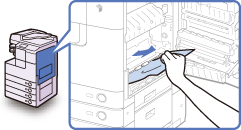
Inside of the Right Cover
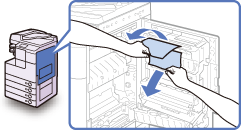
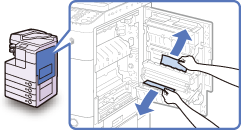
If paper is jammed inside the machine’s right cover, remove the jammed paper as described below.
1
Press the button on the right cover of the main unit, and open the right cover.
2
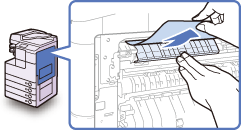
Remove any jammed paper.
3
Remove any jammed paper.
4
Place your hand where the hand symbol () is located on the right cover of the main unit, and then gently close the right cover until it clicks into place.
When closing the cover, be careful not to get your fingers caught, as this may result in personal injury.
IMPORTANT
After you have cleared all the paper jams, make sure to return all the levers and covers to their original positions. Once you have removed all of the jammed paper, printing resumes.
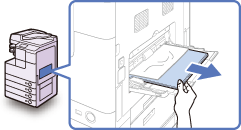
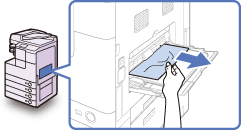
Stack Bypass
If paper is jammed in the stack bypass, follow the procedure below to remove the jammed paper.
1
Remove all the paper that is not jammed from the stack bypass.
2
Remove any jammed paper.
Do not attempt to pull out the jammed paper by force. Doing so may damage the machine. If you find it hard to pull out the jammed paper, remove it from the inside. (Inside of the Right Cover)
IMPORTANT
After you have cleared all the paper jams, make sure to return all the levers and covers to their original positions. Once you have removed all of the jammed paper, printing resumes.
Paper Drawers 1 and 2
If paper is jammed inside Paper Drawers 1 and 2, remove the jammed paper as described below.
IMPORTANT
The procedure described in this section assumes that the machine is equipped with four paper drawers. The number of available paper drawers may vary depending on the machine configuration.
1
Press the button on the right cover of the main unit, and open the right cover.
2
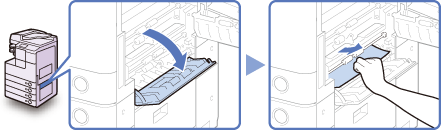
Remove any jammed paper.
3
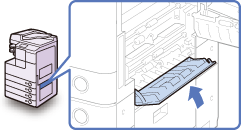
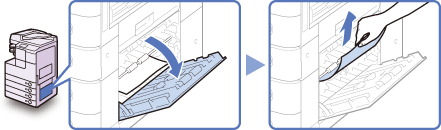
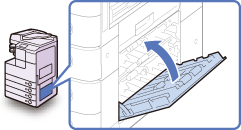
Open the paper drawer’s right cover, and remove any jammed paper.
4
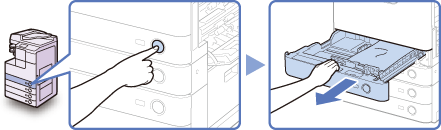
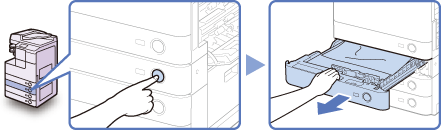
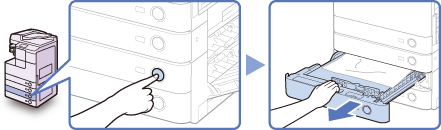
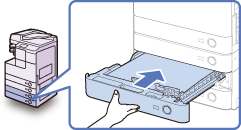
Press the button on Paper Drawer 1, and pull out the drawer until it stops.
5
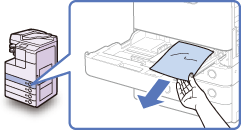
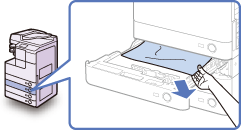
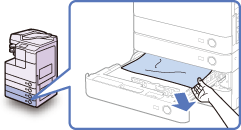
Remove any jammed paper.
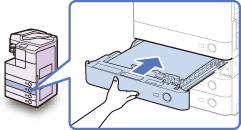
6
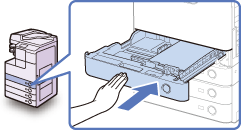
Gently push the drawer back into the machine until it clicks into place.
When returning the paper drawer to its original position, be careful not to get your fingers caught, as this may result in personal injury.
7
Press the button on the Paper Drawer 2, and pull out the drawer until it stops.
8
Remove any jammed paper.
9
Gently push the drawer back into the machine until it clicks into place.
When returning the paper drawer to its original position, be careful not to get your fingers caught, as this may result in personal injury.
10
Close the paper drawer’s right cover.
When closing the cover, be careful not to get your fingers caught, as this may result in personal injury.
11
Place your hand where the hand symbol () is located on the right cover of the main unit, and then gently close the right cover until it clicks into place.
When closing the cover, be careful not to get your fingers caught, as this may result in personal injury.
IMPORTANT
After you have cleared all the paper jams, make sure to return all the levers and covers to their original positions. Once you have removed all of the jammed paper, printing resumes.
Paper Drawers 3 and 4
If paper is jammed inside Paper Drawers 3 or 4, remove the jammed paper as described below.
IMPORTANT
The procedure described in this section assumes that the machine is equipped with four paper drawers. The number of available paper drawers may vary depending on the machine configuration.
1
Press the button on the right cover of the main unit, and open the right cover.
2
Open the right cover of the cassette feeding unit, and remove any jammed paper.
3
Press the button on the Paper Drawer 3 or 4, and pull out the drawer until it stops.
4
Remove any jammed paper.
5
Gently push the drawer back into the machine until it clicks into place.
When returning the paper drawer to its original position, be careful not to get your fingers caught, as this may result in personal injury.
6
Close the right cover of the cassette feeding unit.
When closing the cover, be careful not to get your fingers caught, as this may result in personal injury.
7
Place your hand where the hand symbol () is located on the right cover of the main unit, and then gently close the right cover until it clicks into place.
When closing the cover, be careful not to get your fingers caught, as this may result in personal injury.
IMPORTANT
After you have cleared all the paper jams, make sure to return all the levers and covers to their original positions. Once you have removed all of the jammed paper, printing resumes.
Feeder (Optional)
If paper is jammed in the feeder, remove the jammed paper as described below.
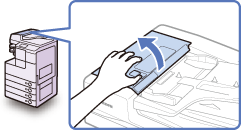
1
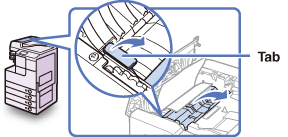
Open the feeder cover.
2
Open the inner cover, holding it by the front tab.
3
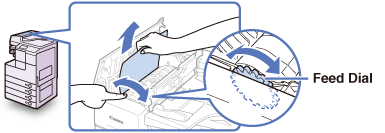
Turn the feed dial and remove any jammed originals.
Do not pull the original forcibly, because it may tear.
4
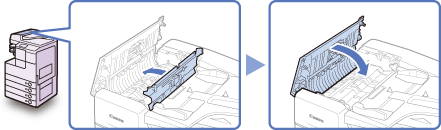
Close the inner cover, and then the feeder cover.
When closing the covers, be careful not to get your fingers caught, as this may result in personal injury.
5
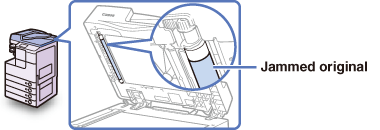
Lift the feeder and check for any jammed originals left inside.
If you find any jammed originals left in the feeder, repeat the procedure from step 1. Do not pull the original forcibly, because it may tear.
6
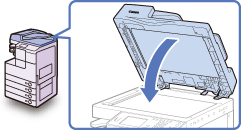
Close the feeder.
When closing the feeder, be careful not to get your fingers caught, as this may result in personal injury.Be aware that the light emitted from the platen glass may be very bright when closing the feeder.
IMPORTANT
After you have cleared all the paper jams, make sure to return all the levers and covers to their original positions. Once you have removed all of the jammed paper, printing resumes.
Paper Output Unit
If paper is jammed in the paper output unit, remove the jammed paper as described below.
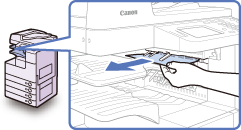
1
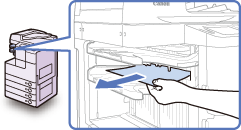
Remove any jammed paper protruding from the output tray.
IMPORTANT
Do not attempt to pull out the jammed paper by force. Doing so may damage the machine.
2
Press the button on the right cover of the main unit, and open the right cover.
3
Remove any jammed paper.
4
Place your hand where the hand symbol () is located on the right cover of the main unit, and then gently close the right cover until it clicks into place.
When closing the cover, be careful not to get your fingers caught, as this may result in personal injury.
IMPORTANT
After you have cleared all the paper jams, make sure to return all the levers and covers to their original positions. Once you have removed all of the jammed paper, printing resumes.
Inner Finisher-B1 (Optional)
If paper is jammed in the optional finisher, remove the jammed paper as described below.
1
Remove any jammed paper protruding from the output tray.
IMPORTANT
Do not attempt to pull out the jammed paper by force. Doing so may damage the machine.
2
Open the front cover of the finisher, and then close it.
When closing the cover, be careful not to get your fingers caught, as this may result in personal injury.
3
Press the button on the right cover of the main unit, and open the right cover.
4
Pull out the paper output unit.
5
Remove any jammed paper.
If paper is jammed far inside, hold down the inner guide and remove the jammed paper.
6
Return the paper output unit to its original position.
7
Place your hand where the hand symbol () is located on the right cover of the main unit, and then gently close the right cover until it clicks into place.
When closing the cover, be careful not to get your fingers caught, as this may result in personal injury.
IMPORTANT
After you have cleared all the paper jams, make sure to return all the levers and covers to their original positions. Once you have removed all of the jammed paper, printing resumes.
This section describes the basic operation procedure for printing JPEG or TIFF files stored in the USB memory media device directly connected to the machine.
† The Media Print function is available only when it is enabled by the System Settings of the machine. See Other System Settings.
1Prepare
Insert the USB memory media device containing the file you want to print into the USB port on the left or right side of the machine.*
When a screen indicating the USB memory media device has been inserted appears, press [Done] and proceed to the next step.
If the machine is in the Sleep mode, press (Power).
Enter your ID and password or insert the control card if the screen prompts you to do so. For more information on logging in to the machine, see How to Log in to the Machine.
* The USB ports on the right side of the machine are optional (USB Application 3-Port Interface Kit-A1). The left side USB port is not available when the above option is attached.
Press (OPTIONS) to display the Options screen → press [Memory Media Print].
3
Select the file to print
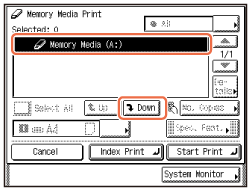
Select the USB memory media device containing the file you want to print → press [Down] to display the files in the media device.
4
Start Printing
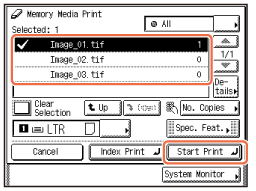
Select the files you want to print → press [Start Print].
To select the file in a folder, select the folder → press [Down] to display the files → select the file.
To cancel printing, press (Stop). You can also cancel the current print job by pressing [Cancel] on the screen indicating the print processing status.*
* The canceling procedure differs depending on the job status. For more information, see Managing Print Jobs.
When printing is complete, remove the USB memory media device from the USB port.
Print Setting Options
Press to specify the print quantity. Press to select the paper source. Press to specify the optional settings for printing JPEG files. Press to print the list of the JPEG files stored in the USB memory media device.
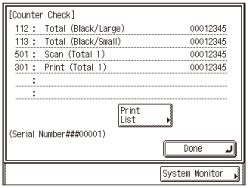
The machine is equipped with a number of counters for various purposes. This section describes how to check the page counters on the control panel.
NOTE
A total of six page counters can be displayed on the screen.For more information on the available counter types, contact your local authorized Canon dealer.
1 Press (Counter Check).
2 Check the desired counters.
If you need a hard copy, press [Print List] → [Yes].
NOTE
The number and types of counters displayed on the screen may vary depending on the machine configuration.The controller version (Serial Number) is also displayed on the bottom of the screen.To return to the previously displayed screen, press [Done].
This section describes the basic copy operation procedures.
NOTE
For instructions on how to turn ON the machine, see Chapter 2, “Before You Start Using the Machine,” in the User’s Guide.For instructions on how to load paper, see Routine Maintenance. The output quality may deteriorate if the platen glass or feeder scanning area is dirty. Always keep them clean. Do not touch the feeder or platen cover while copying. Rocking the feeder or platen cover may distort the image being copied.
1
Press (COPY).
NOTE:
If any of the messages below appears, follow the instructions in Basic Operations:
<Enter the Department ID and Password using the numeric keys.>
The Ideal Technology Toshiba & Canon Youtube Channel
At present, Youtube has become one of the most popular platforms for sharing videos and gaining followers. Many companies are taking advantage of this trend by creating Youtube channels to promote their products and services. In this article, we will explore the ideal technology Toshiba & Canon
Why Choose Toshiba & Canon for Tech Content?
When it comes to technology content, Toshiba and Canon are two brands that stand out for their quality and innovation. Toshiba is known for its reliable laptops, hard drives, and other electronic devices, while Canon is renowned for its high-quality cameras and printers. By combining their expertise, Toshiba and Canon can create a Youtube channel that offers a wide range of tech content, from product reviews and tutorials to behind-the-scenes videos and interviews with industry experts.
What Makes a Great Youtube Channel?
A great Youtube channel is one that not only showcases the company’s products but also provides valuable content that educates and entertains the viewers. The ideal technology Toshiba & Canon Youtube channel would be one that offers a mix of informative videos, hands-on demonstrations, and engaging storytelling. By providing useful and engaging content, Toshiba and Canon can build a loyal following of tech enthusiasts who are eager to learn more about their products and services.
Tips for Creating a Successful Tech Channel
When creating a Youtube channel for technology content, it’s important to keep a few key tips in mind:
Consistency: Consistency is key when it comes to building a loyal following on Youtube. Make sure to regularly post new videos and engage with your audience through comments and messages.
Quality: Invest in high-quality equipment and production to ensure that your videos look and sound professional.
Creativity: Think outside the box and come up with unique ideas for your videos. Whether it’s a product unboxing video or a tech challenge, creativity can help set your channel apart from the rest.
Engagement: Encourage your viewers to like, comment, and share your videos. Respond to comments and messages promptly to show that you value their feedback.
Collaboration: Consider collaborating with other Youtube creators or industry experts to reach a wider audience and bring fresh perspectives to your channel.
The Benefits of Following the Toshiba & Canon Youtube Channel
By subscribing to the Toshiba & Canon Youtube channel, viewers can gain access to exclusive content, product updates, and tech tips from two reputable technology brands. Whether you’re a tech enthusiast looking for the latest gadgets or a professional seeking expert advice, this channel has something for everyone. Plus, by following the channel, viewers can stay up-to-date on new product launches, promotions, and events from Toshiba and Canon. In conclusion, the ideal technology Toshiba & Canon Youtube channel offers a wealth of valuable content for tech enthusiasts and customers alike. By creating a channel that combines informative videos, engaging storytelling, and interactive features, Toshiba and Canon can connect with their audience on a more personal level and showcase their latest products in a creative and compelling way. So why wait? Subscribe to the Toshiba & Canon Youtube channel today for all things tech-related!
We Provide Photocopier Machines Service, & Printer Services in All of Bangladesh. Photocopier Repair Service BD. The Best Photocopier & Printer Service Center in Bangladesh.
Photocopier Machines Repair Servicing in Dhaka We are an experienced Photocopier Technician providing home service. When your printer is damaged,
Q1. What is the phone number for Toshiba Photocopier Mahcines Repair Service Office Equipment Solution?
The phone number for Q1. What is the phone number for Toshiba Photocopier Mahcines Repair Service Office Equipment Solution is +8801717146717.
Q2. Where is Q1. What is the phone number for Toshiba Photocopier Mahcines Repair Service Office Equipment Solution located?
Q1. What is the phone number for Toshiba Photocopier Mahcines Repair Service Office Equipment Solution is located at 9K (Elahi Box Building) 2nd Floor, Motijheel C/A, Dhaka , Bangladesh.
Q3. Is there a primary contact for Toshiba Photocopier Mahcines Repair Service Office Equipment Solution ?
You can contact Shuktara International Office Equipment Solution by phone using number +8801717146717.


 Main Power Switch
 Feeder
 Control Panel
 Platen Cover Type P
 Stack Bypass
 Paper Drawer 1
 Paper Drawer 2 (Optional for the imageRUNNER 2520)
 Paper Drawers 3 and 4 (Optional)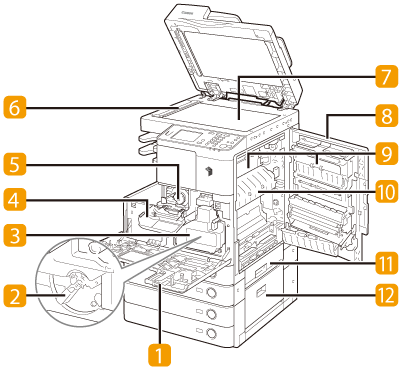
 2 Way Unit-B1
 Fixing Unit
 Paper Drawer’s Right Cover
 Right Cover of the optional CST. Feeding Unit-AE1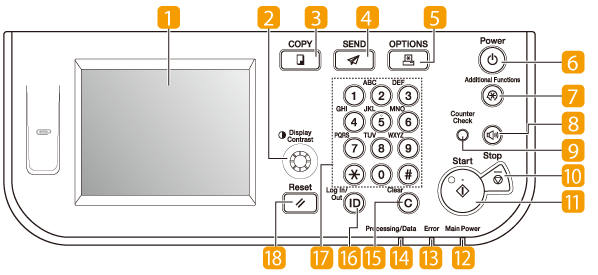
 Error indicator
 Processing/Data indicator
 Clear key
 Log In/Out key
 Numeric keys
 Reset key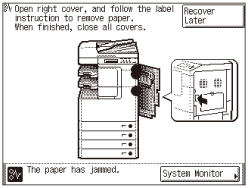


 ) is located on the right cover of the main unit, and then gently close the right cover until it clicks into place.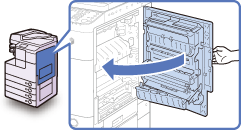

 (Power).
 (OPTIONS) to display the Options screen → press [Memory Media Print].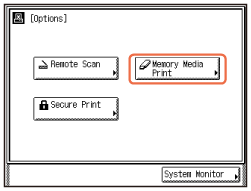
 (Stop). You can also cancel the current print job by pressing [Cancel] on the screen indicating the print processing status.*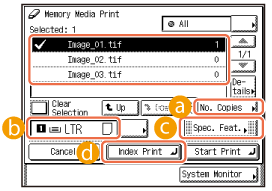
 Press to specify the print quantity.
 Press to select the paper source.
 Press to specify the optional settings for printing JPEG files.
 Press to print the list of the JPEG files stored in the USB memory media device.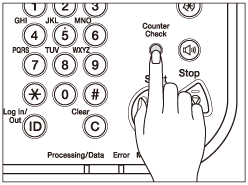

 (COPY).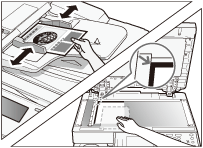
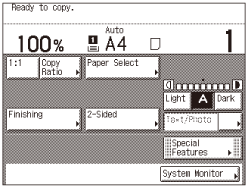
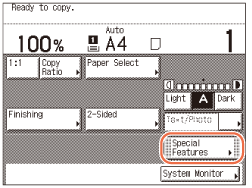
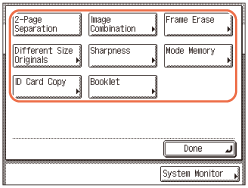 For more information on the functions on the Special Features screen, see


